Feather Client crashes and launch failures are frustrating, but most of them come from a short list of causes. Drivers, memory settings, mismatched mods, blocked files and damaged game assets account for the majority. Working through them in order usually finds the problem within a few minutes.
Identify the Type of Problem
Start by noting exactly when the problem appears. A launcher that never opens points to installation or security software. A game that closes during loading usually means a mod or memory issue. Crashes after joining a world often relate to graphics or specific mods.
| When it fails | Most likely area |
|---|---|
| Launcher will not open | Installation, antivirus or permissions |
| Crash on loading screen | Mods, loader mismatch or RAM settings |
| Black or white screen | Graphics driver or shaders |
| Crash after joining a world | Specific mods, resource packs or world data |
Update Graphics Drivers
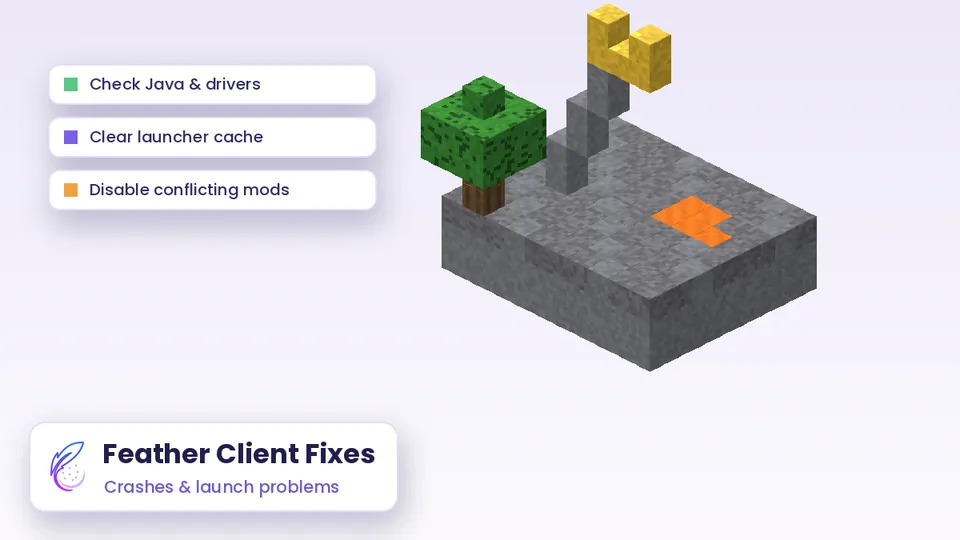
Outdated graphics drivers are behind many black screens and rendering crashes. Download the latest driver directly from NVIDIA, AMD or Intel rather than relying only on Windows Update, then restart the computer before testing again.
Laptops with two graphics chips sometimes run Minecraft on the weaker integrated GPU. In your graphics control panel, set the Java runtime used by the launcher to the high-performance GPU.
Check Memory Allocation
Minecraft needs enough RAM, but allocating too much can starve the rest of your system. A very low setting causes out-of-memory crashes with large mod lists, while an extremely high setting can lead to long pauses and instability.
- Leave a healthy amount of RAM free for Windows and background apps.
- Increase allocation gradually only when using larger mod lists.
- Reduce allocation if the whole computer becomes slow while playing.
- Close browsers and recording tools while testing.
Remove Mods to Isolate the Cause
Launch the same profile with every external mod removed. If it starts, a mod is responsible. Add mods back one or two at a time until the crash returns, and the last mod added is your culprit or part of a conflict.
Check that every mod matches the profile's Minecraft version and loader, and install required libraries such as Fabric API. Duplicate mods that change the same feature, such as two performance optimisers, often clash.
Built-In Modules and Mods Together
If an external mod replaces a feature the client already provides, such as zoom or an FPS display, disable the built-in module. Two systems controlling the same thing can cause visual glitches or crashes.
Read the Crash Report
Minecraft writes crash reports and logs into its game folder. Open the newest file and look near the top for a description and the first lines mentioning a mod name. Even if the rest looks technical, the named mod is a strong clue.
When asking for help in a community forum, share the crash report through a paste site rather than describing it from memory. Helpers can spot the cause far faster with the full text.
Antivirus and Permissions
Security software sometimes quarantines launcher files or blocks them from writing to the game folder. Check your antivirus history for recent detections. Review the details carefully and restore files only if you trust the source you downloaded from.
- Extract archives fully before running anything inside them.
- Avoid installing into protected folders such as Program Files.
- Allow the launcher through your firewall if it cannot connect.
- Run the launcher normally; use administrator mode only when required.
Repair Corrupted Files
Interrupted updates can leave half-downloaded assets that crash the game. Many launchers offer a repair or reinstall option for a profile. If not, delete the affected version folder so the launcher downloads it again cleanly.
Back up your saves and screenshots before deleting folders. Worlds live separately from version files, but a quick copy removes any risk.
Java Runtime Issues
Modern launchers usually bundle the correct Java runtime for each Minecraft version. Problems appear when a custom Java path is set or a system-wide Java install interferes. Reset any custom Java setting to the launcher default and test again.
Resource Packs and Shaders
High-resolution resource packs and demanding shader packs use a lot of video memory. On mid-range graphics cards they can cause crashes, freezes or very long loading times. Disable them first when testing, then return them one at a time.
Choose lower-resolution packs or lighter shader presets if your PC struggles. A 16x or 32x pack often looks great while using far less memory than 256x or 512x versions.
A Quick Checklist
- Update GPU drivers and restart the PC.
- Launch a clean profile without extra mods.
- Set RAM to a sensible middle value.
- Disable shaders and heavy resource packs.
- Check antivirus history for blocked files.
- Read the newest crash report for named mods.
When to Reinstall Completely
If every check fails, a clean reinstall clears broken settings and cached files. Back up your saves, screenshots and mod lists, remove the launcher and its data folders, then install again from a trusted source and test a clean profile before restoring anything.
Feather Client Crash FAQs
Why does the game crash only with shaders?
Shaders push the GPU much harder. Update drivers, try a lighter shader preset and confirm your shader mod matches the profile version.
Does reinstalling the launcher delete my worlds?
Worlds are stored in the saves folder, separate from launcher files. Still, back them up before reinstalling to be safe.
The launcher opens but the Play button does nothing. Why?
The game files may still be downloading, or a security tool may be blocking them. Wait for downloads to finish and check antivirus history.
Why does it crash when joining one specific server?
The server may send resource packs or block certain modules. Try joining with a clean profile and check the server's rules.
Conclusion
Feather Client problems usually trace back to drivers, memory settings, mismatched mods, blocked files or damaged assets. Update your GPU driver, test a clean profile, add mods back gradually and read the crash report for named files. Keep backups of your worlds, and most crashes can be fixed without reinstalling everything from scratch.