Feather Client login uses the same Microsoft account you use for Minecraft: Java Edition. There is no separate Feather password to remember. Once you understand how the sign-in window works, logging in, switching accounts and fixing errors becomes quick and predictable.
Why Microsoft Sign-In Is Required
Since Mojang accounts were migrated, every Java Edition copy is tied to a Microsoft account. The launcher asks Microsoft to confirm you own the game, then receives a token that lets it start Minecraft and join online servers on your behalf.
Your password stays with Microsoft. The launcher should never ask you to type it anywhere except Microsoft's own sign-in page, which opens in a browser window or an embedded Microsoft login screen.
What You Need
- A Microsoft account that owns Minecraft: Java Edition.
- Access to that account's email or phone for verification codes.
- Two-step verification set up, which is strongly recommended.
- A stable internet connection and correct system date and time.
Signing In Step by Step
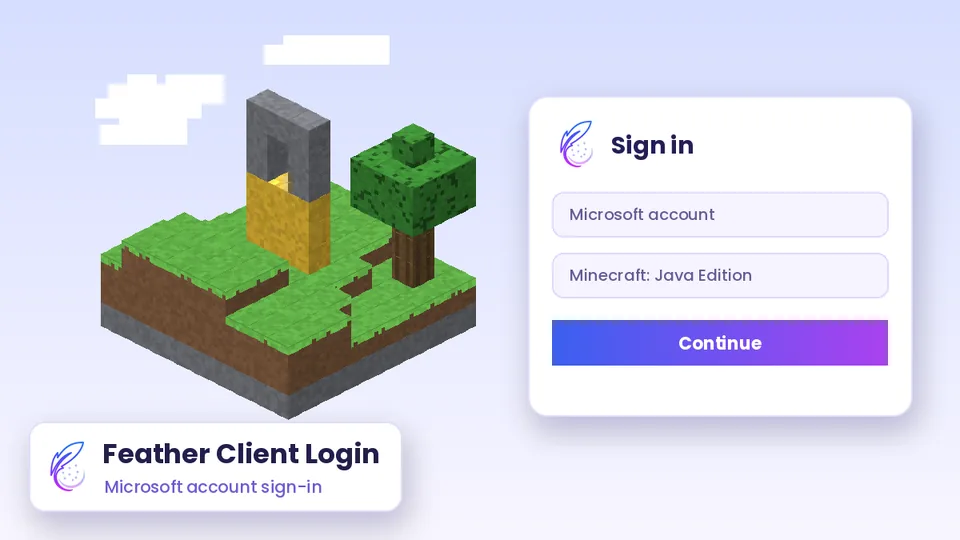
Open the launcher and choose the option to add or sign in with a Microsoft account. A Microsoft page appears asking for your email. Enter it, then your password or approval from the Microsoft Authenticator app, and complete any verification code sent to you.
When Microsoft confirms the login, you return to the launcher with your Minecraft username and skin shown. Choose a profile and press Play to make sure the account works in game.
Checking the Login Window
Look for the familiar Microsoft branding and a page address on login.live.com or login.microsoftonline.com when a browser opens. If a window looks unusual or asks for details Microsoft never requests, close it and do not continue.
Managing Several Accounts
Players with more than one Java Edition account can add each one to the launcher's account list. Switching is then a single click, which helps when you keep separate accounts for content creation, testing or family members.
| Task | Where to find it |
|---|---|
| Add an account | Account menu, then add Microsoft account |
| Switch account | Account menu, select the account name |
| Remove an account | Account menu, sign out or remove |
| Change skin | Skin manager for the active account |
Keeping Your Account Safe
Minecraft accounts are a common target for scams, especially through fake launchers and mod downloads. Most account thefts begin with a login prompt that only looks real. A few habits make your account much harder to steal.
- Turn on two-step verification in your Microsoft account security settings.
- Never share sign-in codes, even with someone claiming to be support staff.
- Download launchers and mods only from sources you trust.
- Review recent sign-in activity on your Microsoft account page.
If You Think Your Account Is at Risk
Change your Microsoft password immediately, sign out of all devices from the security page and check recent activity. Then remove unknown launchers or mods from your computer and scan it with your security software.
Common Login Problems
Most sign-in errors come from network blocks, wrong system time or an account that owns a different edition. The table matches typical symptoms with their usual fixes.
| Symptom | Likely cause | Fix |
|---|---|---|
| Login window loops | Cached session data | Sign out, close the launcher fully and sign in again |
| “You don't own the game” | Account owns Bedrock only | Sign in with the account that bought Java Edition |
| Page never loads | Firewall or network filter | Try another network or allow the launcher in your firewall |
| Token or time error | Wrong system clock | Set date and time to update automatically |
Game Pass and Shared Accounts
PC Game Pass includes Minecraft: Java and Bedrock Edition for its subscribers, and that access is tied to the subscribing Microsoft account. If the subscription lapses, Java Edition access through it ends too, and the launcher will no longer be able to start online play.
Sharing one account across several people is risky. Microsoft may flag unusual sign-ins, and anyone with the password can change settings. Separate accounts are safer for families and friend groups.
Signing In on a Shared or School Computer
Public and school computers often block launchers or clear data when you log out. Even when signing in works, other users may later access a saved session. Avoid saving your account on any machine you do not control.
If you must play on a shared computer, sign out from the launcher's account menu when you finish, then close the application completely. Afterwards, review recent activity on your Microsoft account page from your own device.
Using Two-Step Verification Smoothly
Two-step verification adds a code or app approval after your password. The Microsoft Authenticator app makes this quick: you approve a notification instead of typing a code, and the launcher continues automatically once Microsoft confirms the login.
- Keep a backup recovery code stored somewhere safe offline.
- Add a second verification method, such as a phone number.
- Update your recovery details whenever you change phones.
Parental Controls and Family Accounts
Younger players' Microsoft accounts may belong to a Microsoft family group. Family settings can block multiplayer, chat or purchases until a parent approves them. If sign-in works but online play is refused, an adult on the family account can review those permissions from the Microsoft family settings page.
Feather Client Login FAQs
Do I need a separate Feather account?
No. The launcher signs you in with your Microsoft account. Any extra service accounts, such as for cosmetics, are optional.
Can I play offline without logging in?
You need to sign in for online play and server access. Offline single-player depends on the launcher having signed you in before.
Why does the launcher keep logging me out?
Expired tokens, cleared caches or security software can end sessions. Sign in again and make sure the launcher is allowed through your firewall.
Is it safe to enter my password in the launcher?
Only enter it on Microsoft's own sign-in page. If any other window asks for your password, close it.
Conclusion
Feather Client login is simply a Microsoft account sign-in that proves you own Java Edition. Use the official Microsoft page, turn on two-step verification and keep your system clock correct. For loops or errors, sign out, restart the launcher and check your network, and always confirm you are using the account that actually owns Java Edition.